
Design Specification · Draft 0.1
Choose a graphic that explains what the instrument does. Keep its controls readable and connect each one to the part it changes. Choose typography from the stock screen examples and use colour tokens consistently, then check the complete screen at its intended size. The patterns and screen studies show how these choices work together.
An Instrument First
The original TE screens leave plenty of black space around fine outlines and readable values. Colour connects the controls to the drawing. A waveform, reel, string or envelope earns its space when it helps the player understand the instrument. Start with that purpose and draw your own version.
Keep the playing surface immediate. Put detailed editing on clearly named pages. Show what is selected and what the next encoder movement will change. Prefer an understandable metaphor and a few controls over a miniature desktop panel. These lessons come from studying original OP-1 screens. TE has not published them as design-system rules. See Stock Screen Families for screen families and the design relationships they teach.
Use stock interaction patterns as well as their visual language: preserve context beside detail, distinguish edit focus from playback activity and show what an alternate control will change. Stock screens use named layout regions and text templates; no universal TE authoring grid has been established. The kit grid is a construction aid, not a substitute for the musical composition.
Typography From The Original OP-1
Start with the stock screen that has the same reading task: a browser row, a parameter readout or a dominant number. The original OP-1 uses varied sizes; this kit does not impose a three-size or four-size limit. Keep that visual hierarchy and leave room around the complete lettering, including its stroke.
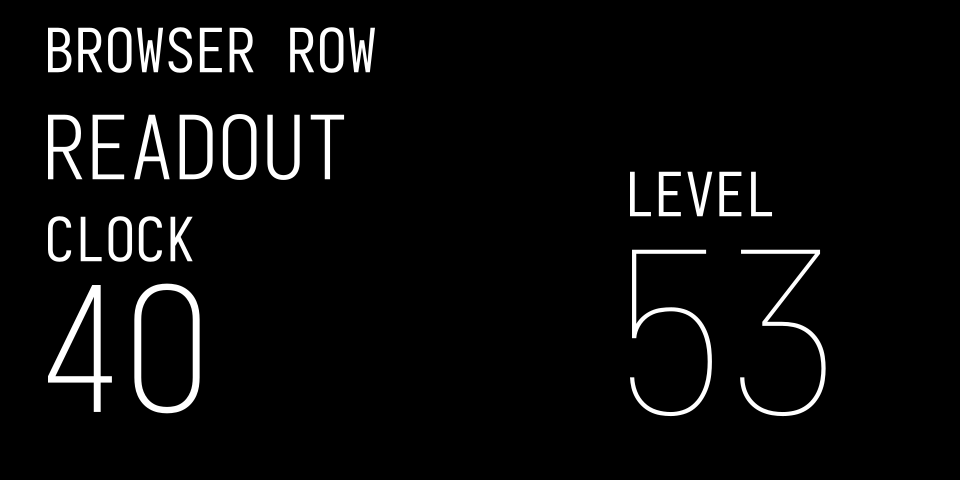
Original code render with the Iosevka placeholder: browser-row lettering, a short readout, clock-sized numerals and mixer-sized numerals. These are specimens, not stock screen captures. “40” and “53” are sample values, not size labels.
These representative stock text templates provide the kit's preview profiles. Dimensions are approximate geometric heights in the 320×160 artwork, before stroke, display scaling and clipping. They are not CSS font sizes or measured OLED pixels. Profile names describe their source, not additional TE terminology.
| Size | Preview Profile | Reference Height | Stock Example And Reading Task |
|---|---|---|---|
| XS | browserRow |
13⅓ | Preset-browser names and categories: repeated readable rows |
| S | parameterValue |
20 | Sampler gain and tuning values: short parameter readouts |
| M | tempoCompact |
≈35.83 | Tempo's compact BPM template: a prominent number with more digits |
| L | clockNumber |
≈40.31 | Clock hour/minute numerals: a dominant time readout |
| XL | tempoMedium |
≈42.81 | Tempo's intermediate BPM template: another explicit number layout |
| XXL | mixerLevel |
≈53.34 | Mixer level numerals: a large number in each encoder lane |
Use the size aliases xs, s, m, l, xl and xxl in components or use
the descriptive profile name. Both select the same dimensions. These aliases
follow the reference heights in ascending order, not a mathematical scale.
These names describe representative stock examples; TE does not use this size classification. The similar sizes stay separate because Clock and Tempo use them in different layouts. Tempo also has a larger BPM layout near 53.41 units and tape-speed lettering near 53⅓. Pick a reference for the job rather than inventing a fixed universal scale. Embedded tiny lettering inside a specialised illustration is not a reason to shrink ordinary labels.
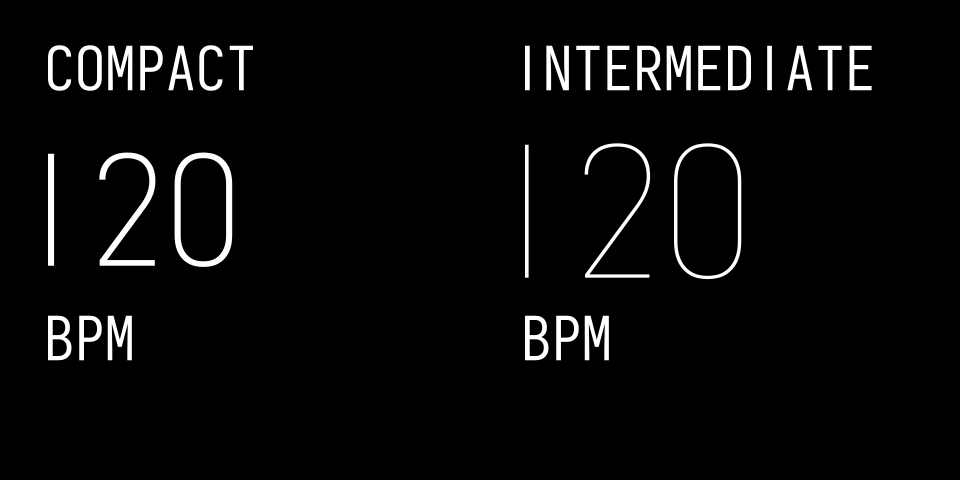
The same number at the compact and intermediate Tempo reference heights, with supporting unit labels. Original code render, not a Tempo screenshot.
Stock Screen References
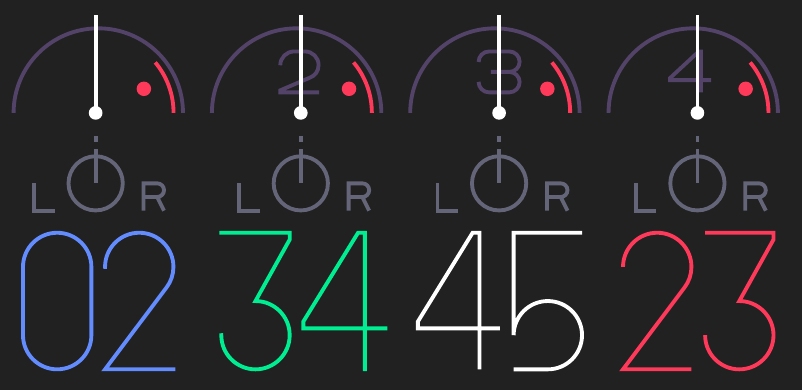
The stock Mixer repeats four lanes and gives the level numbers the most space.
Track identity, level, pan and activity have different visual jobs. Large values
remain tied to encoder order; smaller marks support them without competing.
This is the reading task behind the XXL mixerLevel reference.
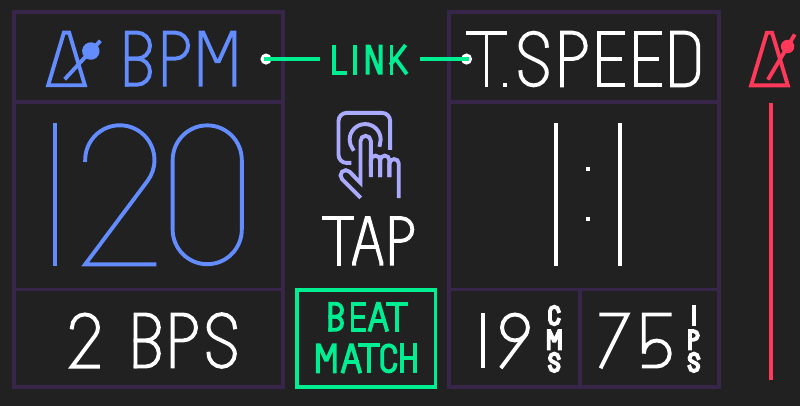
Tempo gives BPM and tape speed large number areas, with smaller units and supporting actions. The firmware also supplies compact and intermediate number templates. The illustration explains the hierarchy; the profile dimensions come from the stock templates, not from measuring the manual’s printed scale. See the official original guide.
Choosing A Size In A New Screen
| Size | Where To Use It | Example | Layout Guidance |
|---|---|---|---|
| XS | Parameter names, units, browser rows and supporting key captions | TENSION, MS, KIT 07 |
Keep a stable row or anchor. In a list, show selection with a marker and colour rather than making the row jump in size. |
| S | A short editable value beside its name or instrument graphic | 64, 145 MS, -6 DB |
Group the value and unit on one baseline. Membrane uses XS names and S values in separate columns. |
| M | A prominent number with room for several digits and nearby controls | 120 BPM or a step count |
Use the compact Tempo reference when the number must share a structured screen. Keep its unit outside the number block. |
| L | A dominant time or short performance readout | 12:34 or a single tuning value |
Keep labels subordinate. The clock profile is a useful reference for a screen led by time; inspect the whole field, including punctuation. |
| XL | A prominent BPM or rate in a more spacious layout | 120 BPM |
Use the intermediate Tempo reference when the composition leaves room. It is a distinct stock layout, not a selected or hover state of M. |
| XXL | A large, glanceable lane value or a single main number | Mixer level 02, 34, 45, 23 |
Reserve enough width for the full range. A level from 0–99 is a different width problem from a percentage reaching 100. |
These are applications of the stock examples, not additional stock screen claims. The aliases are choices, not a requirement to use every size in one screen. For a single value or list, keep its size and anchor steady as content changes. If the full range will not fit, choose an explicit layout or number-format variant in advance. Do not quietly shrink the current value until it fits.
A useful starting combination is XS name + S value + XS unit. Use L or XXL only when the number is meant to dominate the screen. Keep the exact source profile attached to the alias, measure the actual stock font and check minimum, maximum, sign, decimal and unit changes. A short default string does not establish that every value fits.
// All coordinates are logical units; source profiles stay in the token data.
text(screen, { id: 'name', value: 'TENSION', x: 212, y: 24, size: 'xs', tone: 'blue' });
text(screen, { id: 'value', value: '64', x: 311, y: 17.3333, size: 's', tone: 'blue', align: 'right' });
// Name and value share a bottom baseline, with a measured horizontal gap.
Weights For Host Previews
Iosevka weight follows the kit’s logical text size: XS 400, S 300, M/L 200 and XL/XXL 100. The role determines which size is useful; it does not select an independent weight. Scaling a whole screenshot leaves that mapping unchanged. These are open-font preview choices, separate from stock size and stroke data. See Host Preview Font for the table, rendered examples and loading instructions. Emulator and hardware screens use the platform’s stock text route with the owner’s firmware.
Native Text And Host Metrics
Stock text is created both directly and from named SVG templates. The native template route takes its size from the template bounds. Direct stock text construction also uses integer heights such as 12, 16, 18 and 20. These are constructor arguments, a different measurement from template geometry or visible ink; do not mix them into one size table or pass preview heights to a native API without checking that adapter's mapping.
Public PNGs use the Iosevka host placeholder, sized to the stock-reference profiles including their stroke. The editable native SVG renderer keeps the original schematic lettering. Stock-local previews scale locally supplied stock glyphs to the same reference height with approximate spacing. Measure the resulting ink, bearings and advances again for each renderer. Neither host route certifies native kerning, projection or physical legibility. See Fonts.
Choose a suitable reference profile deliberately. If a label or value does not fit, shorten a familiar name, format the number, move the unit, wrap, use a fixed-size scrolling name window or create a page. Do not silently auto-shrink, stretch, squeeze or crop critical text. Check long and extreme values in the actual font. A missing glyph is an explicit error.
Four Encoder Lanes
Blue, Green, White, Orange, in physical order. Make encoder ownership clear using the corresponding colour in a label, value, marker or controlled graphical element. Reinforce that association with grouping, position and shape, so the screen remains usable without colour discrimination. The label, value, unit and drawing do not all have to use identical paint: neutral text is valid where the controlling encoder remains clear.
Stock screens use several treatments. FM and Mixer use encoder-coloured numeric values. Phone pairs a Green PHONIC label and an Orange/Red TELEMATIC label with White numeric values. These are different ways to communicate ownership, rather than a requirement to recolour every number. See TE's original layout guide and the Phone illustration in the original manual, PDF page 44. For a new screen, choose a consistent treatment for its reading task; coloured labels with White values and encoder-coloured values are both options.
The fourth control is called Orange here; older op1r documentation sometimes calls it Red. The kit token for that role is red-orange; it does not change its physical identity.
Primary and Shift control maps should be documented side by side. Keep an important persistent lane stable across pages where practical: GIN's morph is an example. Show the secondary label, value and unit while it is active. Do not invent touch, encoder push or Shift-fine behaviour for a framework that has not established that input contract.
At instrument level, respect the original T1 engine / T2 envelope / T3 FX / T4 LFO organisation unless the plugin deliberately documents a different route. In subpages, align four action captions with T1–T4; captions describe actual actions. Preserve key-release bookkeeping when changing modes. A picture of an action does not implement its input route.
Input And Navigation Contract
For each proposed screen, add a compact contract beside its state examples. Record the actual framework’s input routes before treating a graphic as an editable control. The useful question is: what will the player’s next action change?
| Part Of The Contract | What To Describe |
|---|---|
| Primary inputs | What each available encoder turn and key press changes, with the owning parameter or action. Include encoder presses only if the framework provides them. |
| Alternate inputs | What Shift changes, whether an action happens on press or release and how the normal presentation returns. |
| Enter and return | How the player enters detail, changes pages, returns or cancels. Distinguish returning from applying or saving. |
| State on return | Which parameter values, edit selection, draft state and playback position persist or reset. Keep playback separate from editing focus. |
| Discoverability | How names, key captions, a focus marker, an alternate presentation or concise help reveal controls that are not permanently labelled. |
Use only the rows relevant to that instrument. For a static concept, mark unimplemented routes as proposed; the example does not establish a working binding. When integrating, test the transitions and retained state through the real host input route as well as inspecting the pictures.
Alignment And Readout Groups
Choose one anchor for a parameter name and its value. In the reference Play layout, left-side blocks share x=9 and right-side blocks share a right edge at x=311. Do not left-align names while centring or independently shifting values. In the reference editor, use stable column left anchors 9, 89, 169 and 249, corresponding to Blue, Green, White and Orange. These are layout proposals. Keep a value and its unit together on one baseline, measure the complete pair and preserve its group anchor when switching font profiles. Do not place units using the schematic number's width after loading a different stock font.
Coordinates And The Window
Author in 320×160 logical units. This is not a statement that the physical OLED has 320×160 pixels. Original-device work uses a 400×198 output; a uniform 1.25 host scale yields 400×200 before any clipping. Treat mapping, renderer clipping and case/window occlusion as distinct concerns.
Proposed content insets are Left/Right/Top 8, Bottom 16 logical units.
The resulting safe rectangle is x=[8,312], y=[8,144]. Include stroke extents,
text overhang, animation extremes, unit baselines and descenders within it.
Full-screen clears/veils may intentionally cover the whole canvas. The example
footer begins at y=125, keeping browser-row lettering and stroke above y=140.
maxaw reports 147 units of usable height. popcorp recommends keeping content above about y=140. These are attributed device observations, not a universal clipping boundary. Keep critical text and controls, including stroke extents, at or above y=140 as a cautious working guide. The default safe rectangle still ends at y=144; its last four units are clearance, not a target for important content. Kennel's 12-unit effect composition lift is a separate framework correction. Physical display revisions and the case/window still need checks. Do not add a framework's translation twice. Move artwork, text, pivots and clipping together, while keeping full-screen veils full-screen.
Layout And Grid
Start by reserving space for the main musical relationship, its readouts and any navigation. Use a grid to make those regions feel related, then adjust for the actual lettering and artwork. Leave enough room for the largest value and the full movement of the graphic. Empty space helps a small screen stay readable.
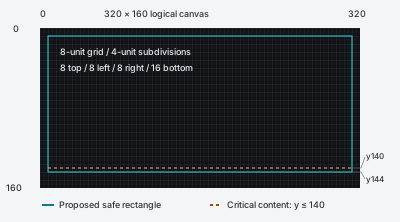
Original construction diagram, not an instrument screen or measured bezel. Cyan marks the proposed safe rectangle; the orange line at y=140 is the cautious critical-content guide. The four-unit strip below it is clearance.
A Flexible Construction Grid
Use an 8-unit grid, anchored at the canvas origin (0,0), with 4-unit
subdivisions for smaller adjustments. This adopts
maxaw’s community suggestion,
not a measured TE grid. Stock screens teach relationships such as enclosure,
shared baselines, repeated lanes and a stable frame around a moving part.
They do not establish one universal column template.
| Spacing Token | Starting Use | How To Measure |
|---|---|---|
| Related · 4 | A value and its unit, or closely related controls | Between visible ink bounds, not text origins |
| Group · 8 | Neighbouring parameter groups or artwork and a readout region | Between complete group bounds |
| Section · 12 | A main diagram and a separate navigation or status region | Between occupied regions |
These are kit starting points. The existing 2-unit text-to-artwork clearance is a minimum collision guard, not the preferred gap for an ordinary layout. Use more space where possible. Grid lines locate regions and repeated anchors; do not snap every glyph, curve vertex or animation position to them. Preserve useful fractional coordinates and optical corrections.
Choose The Composition Before The Columns
| Reading Task | Layout Approach | Stock Reference |
|---|---|---|
| Understand interacting parts | Put a readout inside the object that owns it, with clear internal padding | FM’s enclosed values |
| Explore a physical model | Give the physical model most of the canvas; reserve readout space where the new design needs it | String’s perspective model |
| Compare four values | Repeat a lane, baseline and value format in encoder order | Mixer’s four lanes |
| Edit a boundary or stage | Keep the waveform or envelope reference frame fixed; separate readouts from the changing line | Sampler and envelope |
See Patterns And Screen Examples for the composition studies. Four encoder colours express ownership even when the drawing is asymmetric. A four-column editor is useful for comparison; it is not a mandatory synth layout. The reference editor’s 80-unit column pitch is distinct from an 80-unit text allowance: the last lane still has to respect the right inset.
Align Groups And Reserve Their Full Extent
For a stacked name and value, share a left edge, right edge or deliberate centre axis. For a horizontal readout, keep value and unit on one baseline and align a repeated column of numbers to a stable right edge. Measure the selected font’s visible lettering and stroke, not just its nominal height. Keep this anchor stable as values change; a centred number must not drag neighbouring labels with it.
Reserve the longest supported label, sign, digits and unit before placing
artwork. Inspect minimum and maximum values, negative values, decimals and
format transitions such as 999 ms → 1.00 s. The widest string may be between
the extremes. Check the longest Shift label while the artwork is moving too.
If the group does not fit, shorten the label, change the value format, enlarge
its region or move detail to another page. Do not squeeze lettering or reduce
its size automatically. Keep text outside a graphic’s swept bounds, including
strokes and all states, unless it has a deliberate clear interior such as FM’s
blocks. If a readout belongs inside moving artwork, transform its enclosure
and text together and verify internal padding throughout every pose. A clear
rest frame alone does not prove clearance during movement.
Check The Layout At Its Intended Size
Inspect the complete screen at 320×160 logical size and in the intended output mapping. Check the four outer margins, text/artwork clearance, consistent group anchors and the critical-content guide. Include selected, idle, Shift and extreme-value states. An enlarged preview helps find collisions but cannot establish readability through the physical window. Validate native placement and the case/window separately; a host grid does not prove either.
Palette And Strokes
| Role | Reference RGB | Status |
|---|---|---|
| Background | #000000 |
Kit token |
| Blue | #698eff |
Kit token |
| Green | #00ed95 |
Kit token |
| White | #ffffff |
Kit token |
| Orange | #ff423f |
Kit token |
| Secondary | #b9b9c9 |
Original library choice for readable secondary text |
| Decorative | #625d77 |
GIN reference dim tone; nonessential decoration only |
These are the kit’s op1-kit-v1 colour tokens, chosen for consistent previews
and encoder ownership. They are not a claim of exact stock values or calibrated
OLED colours. Keep another project’s palette as a separately named profile.
Secondary and Decorative support hierarchy; do not use dim tones for essential
ordinary labels or make a warning depend only on red/orange.
Use centred strokes and include half the width on each side when measuring ink bounds. For a 1.5-unit line at x=8, the outer ink reaches x=7.25. There is no portable inside/outside stroke setting in this native profile; inset the centreline yourself. Use 1.5 units for ordinary artwork and 2 for emphasis, as practical artwork defaults. The stock-reference lettering profiles use 1.5-unit strokes, with 2 units for Clock, matching the representative templates. These values are starting points. Check on the target before using functional lines thinner than 1 unit. Check curves, diagonals and fractional positions at actual size; thicker is not automatically clearer. See Graphics for renderer-specific antialiasing and why raster supersampling is a host tool.
State Communicates Truth
Distinguish selected item, playing item, edit endpoint A/B, morph position, draft name, applied name and saved state. Show a live modulation value only when that is the intended readout; do not label a raw saved word as audible state. Use the framework's documented normalised-live services where available.
Cancel discards a draft. Apply acknowledges the specific submitted change. An on-screen value is not proof of a successful save. Keep a readable pending or retry state until the backend reports completion. Show only recovery actions that exist. Empty, loading, unavailable and failed states need different messages. Before a destructive commitment, show the complete readable target and action; a successful width check alone does not prove the native warning was rendered.
Design Checks
Review minimum/default/maximum values, long names, unit changes, missing glyphs, Shift, all pages, mode return, stale selection, empty/loading/error states and save/cancel/retry. Inspect 1× logical and physical-output-size views plus enlarged edges. A host screenshot is a design check. Native rendering, physical legibility and peak CPU/audio behaviour are separate qualification steps.